

Roles and permissions
Decide what each group of people may see, create, change, delete and export, module by module and pipeline by pipeline.
Roles decide what people may do in each part of the CRM: which records they see, and whether they may create, change, delete or export them. You set them under Settings → Access. Only owners and admins can change roles.
The roles you start with
A new workspace has three roles ready:
- Manager: sees everything, changes anything in their own department and the departments under it. It is the default for everyone with the Manager role.
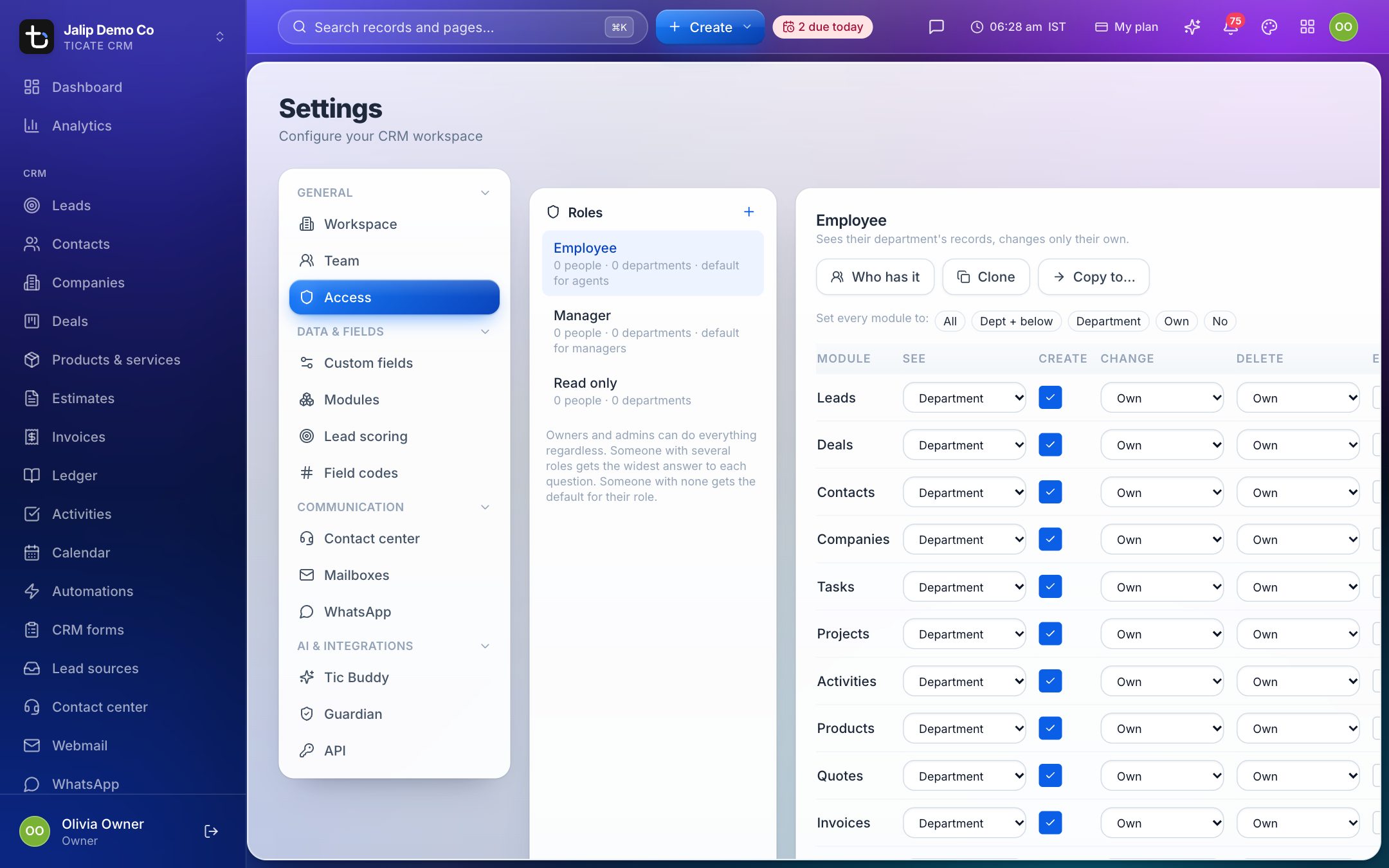
- Employee: sees their department's records and changes only their own. It is the default for everyone with the Agent role.
- Read only: can look at everything and change nothing.
Each role in the list shows how many people and departments hold it. Departments are the teams you set up under Settings → Team.
What a role allows
Click a role to see its permissions. The table has one row per module: Leads, Deals, Contacts, Companies, Tasks, Projects, Activities, Products, Quotes (that is, estimates), Invoices, and your own modules. It has five columns:
- See, Change and Delete take a reach:
- No: not at all.
- Own: records they own.
- Department: records owned by anyone in their departments.
- Dept + below: their departments and every department under them.
- All: everyone's.
- Create and Export are ticks: allowed or not.
To set the whole table at once, use the buttons after Set every module to:. Then adjust single rows. Click Save when you are done; Unsaved changes reminds you if you have not.
More rights in a role
Below the table, the same role covers:
- Money and ledger: whether the role sees money received, money spent, or both, on deals, companies and contacts and in the Ledger, and whether it may open the Ledger or change its entries.
- Payments: recording payments and sending payment links, confirming payments as received, applying payments to invoices, and removing payments recorded by mistake. Without the right to confirm, the payments a person records wait for someone who can.
- Automations: seeing, creating, changing and deleting automations.
- Calendar: who may put events on other people's calendars.
- Duplicates: whether the role may still create a lead, contact, company or deal that already exists, after being shown the existing one.
- Tic Buddy: using the assistant, and creating or changing records through it.
- AI analytics: asking AI for reports in Analytics. Its reports cover the whole workspace, so tick it only for roles that may see every figure.
Rules for one pipeline or stage
Under Pipelines and stages, open a pipeline to give this role different rights there than the module has. You can go further and set rights for a single stage, or lock a stage so this role cannot move records into it. Anything left on inherit follows the module. Click Save pipeline rule to keep the changes, or Clear — inherit everything to remove them.
Give a role to people
- Select the role and click Who has it.
- Click Whole departments to give it to everyone in a team. People get it when they join the team and lose it when they leave.
- Or click individual People.
- Click Save.
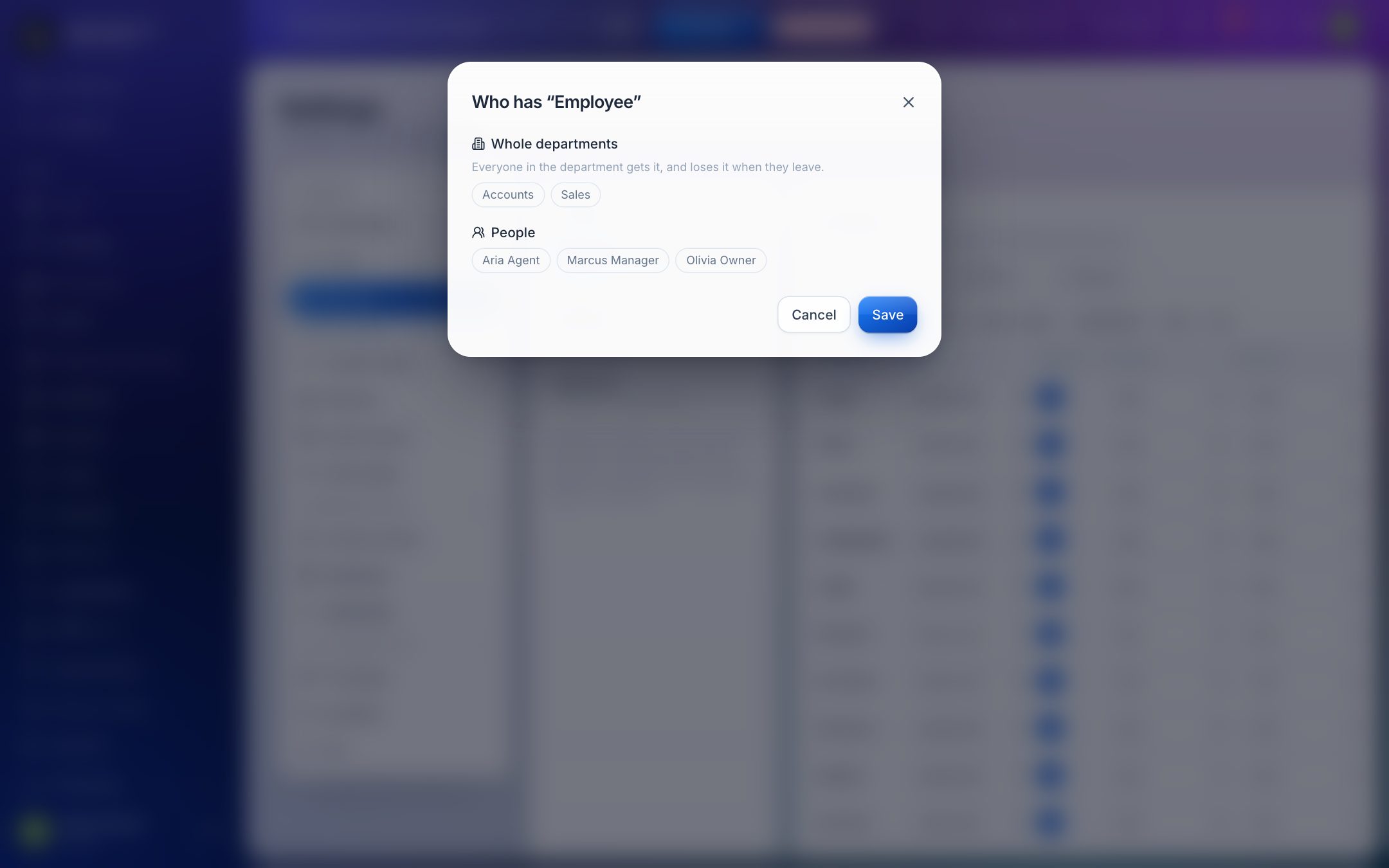
Someone with several roles gets the widest answer to each question. Someone with no role here gets the default for their user role: Manager for managers and Employee for agents.
Make a new role
- Click + next to Roles, name it (for example Sales rep or Accounts) and click Create. It starts like the Employee role.
- Or select an existing role and click Clone to start from a copy.
- Copy to… gives other roles exactly this role's permissions, without changing who holds them.
- The bin icon deletes a role you made. People holding it fall back to the default for their user role. The three starting roles cannot be deleted.